Register and reuse templates
How to manage SMS, email, and chat templates: register and edit frequently used messages, use merge fields (customer name, pickup time, etc.), and handle shared templates and enable/disable. Cut the effort of typing the same thing every time.
Video #171:07
Creating and using templates
The audio and subtitles of these videos are in Japanese. An English translation of the narration is available below.
Narration transcript (English translation)
Templates can be created in three places: email, SMS, and chat. In “Email” on the “Messages” tab, tap “Templates” at the top right.
Templates marked “Default” with a lock are ready-made texts. You can read them, but you can't change or delete them.
“How to use” contains an explanation. Save a template in Japanese and it's automatically translated into English, Korean, and Chinese.
Under “Add”, enter a title, subject, and body. Insert variables with the buttons below, and they're replaced for each booking when sent. Nothing is registered until you tap “Save”.
Switch to “SMS” and tap “Templates” to create SMS templates for each purpose.
Under “Templates” in “Chat”, you can set chat templates and the first greeting message.
To use them, choose from “Select template (optional)” in the message step when sending email. In chat, choose from the memo-shaped icon to the left of the input field. That's how to use templates.
Voice: ElevenLabs (AI-generated voice)
Contents
Overview
Templates let you register frequently used messages — pickup guidance, pre-arrival guidance, day-before reminders, and so on. SMS, email, and Translation Chat each have their own templates that you can insert with one tap when sending, so you don't retype the same text every time.
Manage templates
STEP 1: Open the template list
Open the template management screen from "Templates" on the SMS, email, or chat send screen. Registered templates are listed with a purpose label (e.g. Pickup guidance, Pre-arrival guidance, Day-before reminder).
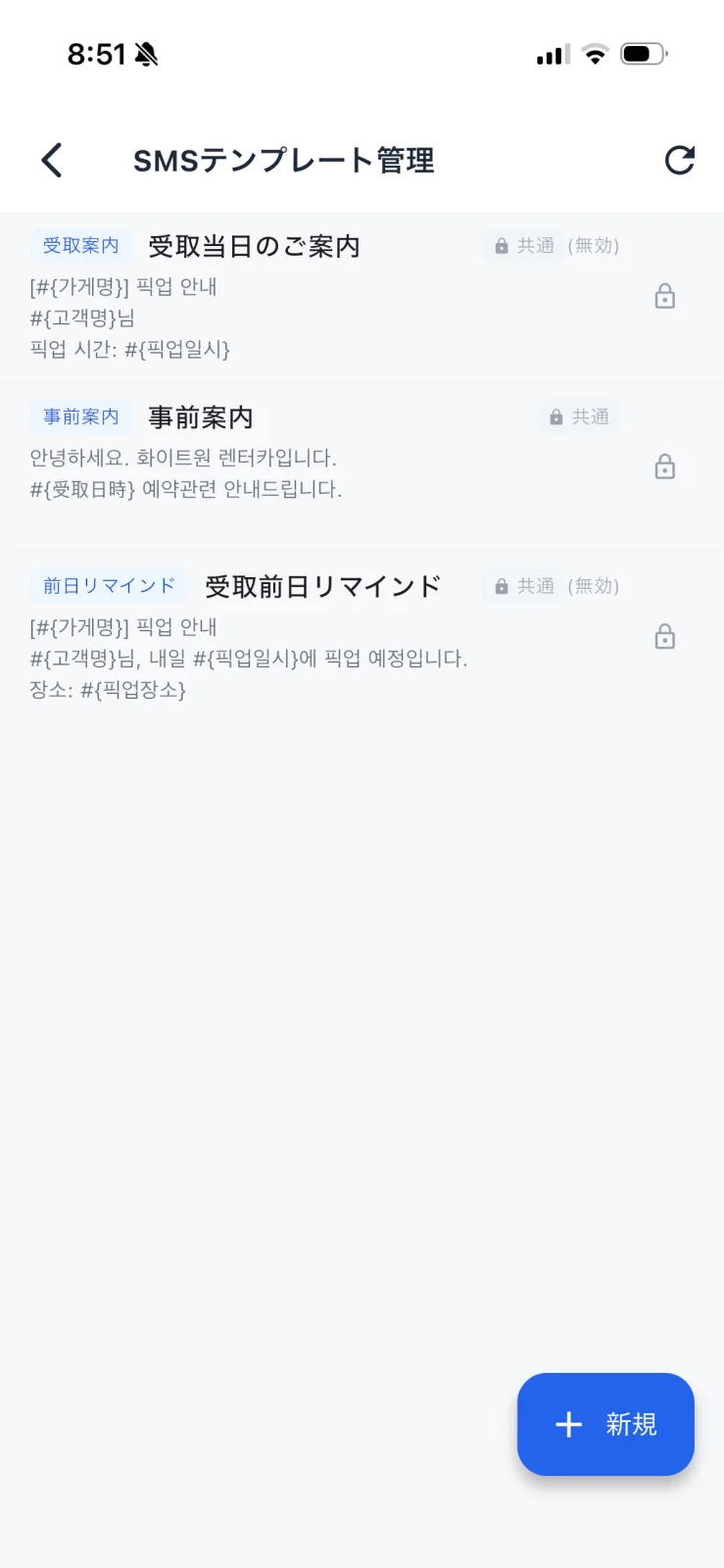
- Templates with a Shared badge are common messages prepared across partner stores.
- Templates marked Disabled are currently not in use (you can toggle enabled/disabled).
- Create a new template from "New" at the bottom right.
Use merge fields
STEP 2: Put variables in the text
A template body can include merge fields. For example, inserting #{customer name}, #{pickup time}, #{pickup location}, or #{store name} makes them automatically replaced with each booking's actual info when you send.
STEP 3: Create and edit templates
From "New," enter a purpose and body, then save. Tap an existing template to edit it. SMS switches between SMS / LMS by byte length, so mind the body length.
FAQ
Q. Can I edit a "Shared" template?
A. Shared templates are messages prepared for everyone. If you need wording specific to your store, create your own template from "New."
Q. Are templates shared between email and SMS?
A. No. SMS, email, and chat each manage templates separately. Register them with a length and wording suited to the send method.
Q. I added a variable but it isn't replaced
A. Check that the variable name is correct, and that the matching info (customer name, time, etc.) is registered for that booking.
Related
- messaging — Send email/SMS using templates
- chat — Use templates in Translation Chat
- precheckin-settings — Set the pre-check-in auto-guidance text