Talk with foreign customers using AI interpreting (call and face-to-face)
How to use AI interpreting: the interpreted call, started from the handset button in Translation Chat so the customer joins on their own phone, and face-to-face interpreting on a single device. Use it whenever typing is too slow — accidents, breakdowns, directions. Customers do not need to install an app.
Video #151:05
AI interpreting (phone and in person)
The audio and subtitles of these videos are in Japanese. An English translation of the narration is available below.
Narration transcript (English translation)
The phone button at the top right of a translation chat room is the “Interpreted call”. You and the customer can each speak in your own language.
Tap it and an incoming call appears on the customer's chat screen. Once they answer, the call starts; a few seconds after you finish speaking, the translated audio reaches the other person.
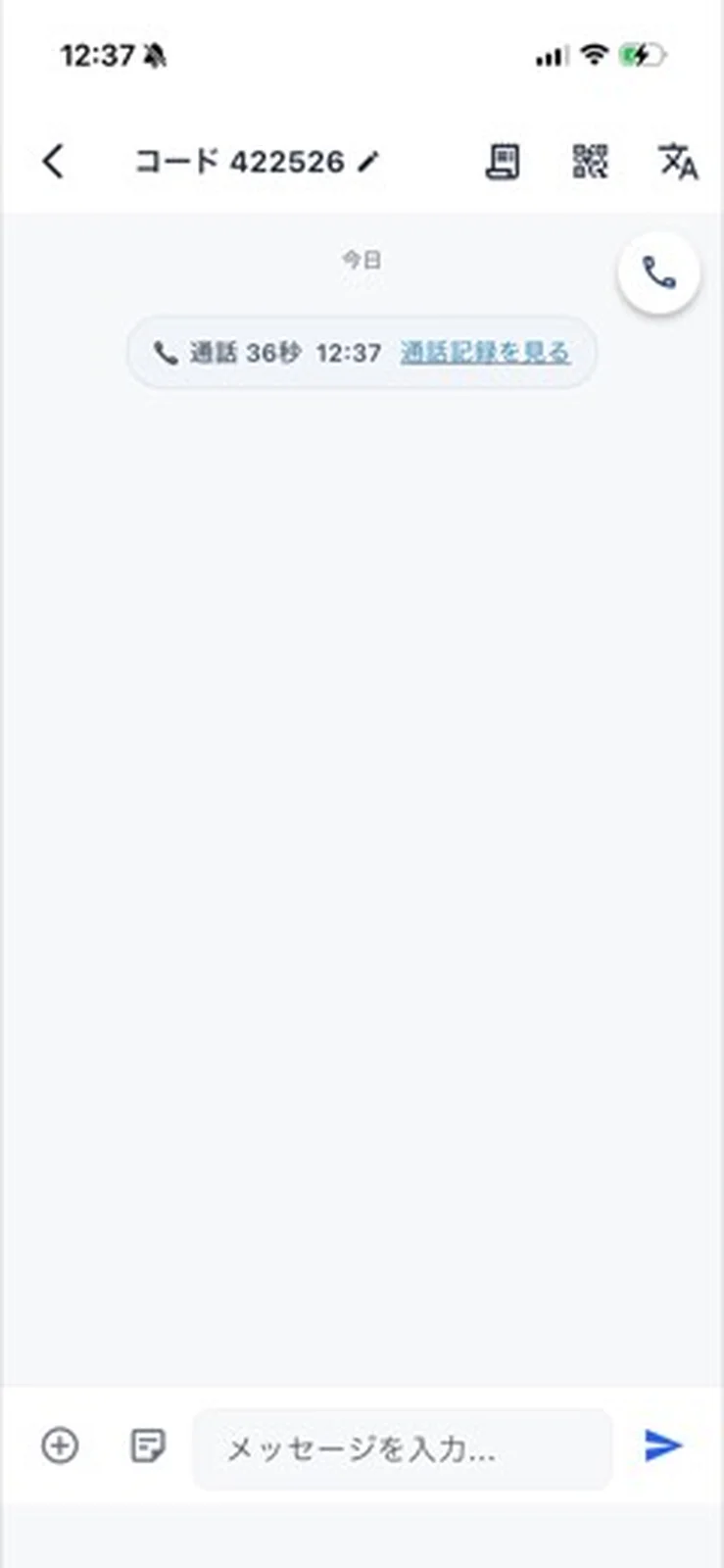
When the call ends, a single line with the call time and length is left in the chat.
Tap “View transcript” to check what was said, in both translation and original.
When talking face to face at the counter, open “AI Assistant” under “Other” in the menu and choose the interpreter.
You can speak as soon as the interpreter screen opens. Speak only while holding the round button; release it and the translated audio plays a few seconds later.
The top half of the screen shows the translation in large text for the customer. Tap the language name to change the customer's language. That's how to use the interpreter.
Voice: ElevenLabs (AI-generated voice)
Contents
- Overview
- Before you start
- Placing an interpreted call (from Translation Chat)
- STEP 1: Tap the handset button in the chat
- STEP 2: Ringing — wait for the customer to answer
- STEP 3: The customer answers
- STEP 4: Talk
- Placing an interpreted call (by passing a number or QR code)
- STEP 1: Open the AI assistant and switch to "通訳"
- STEP 2: Tap "電話" on the interpreting screen
- STEP 3: Give the number, link, or QR code to the customer
- STEP 4: The customer enters a name and picks a language
- Using face-to-face interpreting
- Call records
- Typical situations
- FAQ
- Q. Does the customer need to install an app?
- Q. Can customers call us?
- Q. What about Thai or Vietnamese customers?
- Q. The conversation keeps getting tangled and I hear a double voice
- Q. Subtitles appear but there is no sound
- Q. The call dropped
- Q. It says "Already on a call"
- Related
Overview
AI interpreting lets you talk with foreign customers by voice. You speak Japanese; the customer hears their own language. There are two ways to use it, depending on whether the customer is in front of you or somewhere else.
| Mode | When to use | How it works |
|---|---|---|
| Interpreted call | The customer is away (accident, breakdown, directions) | The customer joins on their own phone. Both sides can speak |
| Face-to-face | At the counter (check-in, handover, return) | One device between you. Speak while holding the button |
The interpreted call can be started straight from the Translation Chat screen. If you are already chatting with the customer, there is no number to pass along.
Before you start
- Five languages are available — 日本語 / 한국어 / English / 简体中文 / 繁體中文 (Taiwan).
- This is not simultaneous interpreting. The translation arrives a few seconds after you finish speaking. Speak in short, single-breath sentences.
- Earphones are recommended. On speakerphone the microphone picks the interpreted audio back up and the conversation falls apart.
- Only staff can place a call. There is no dial button on the customer's screen, so a call never comes in from the customer's side.
Placing an interpreted call (from Translation Chat)
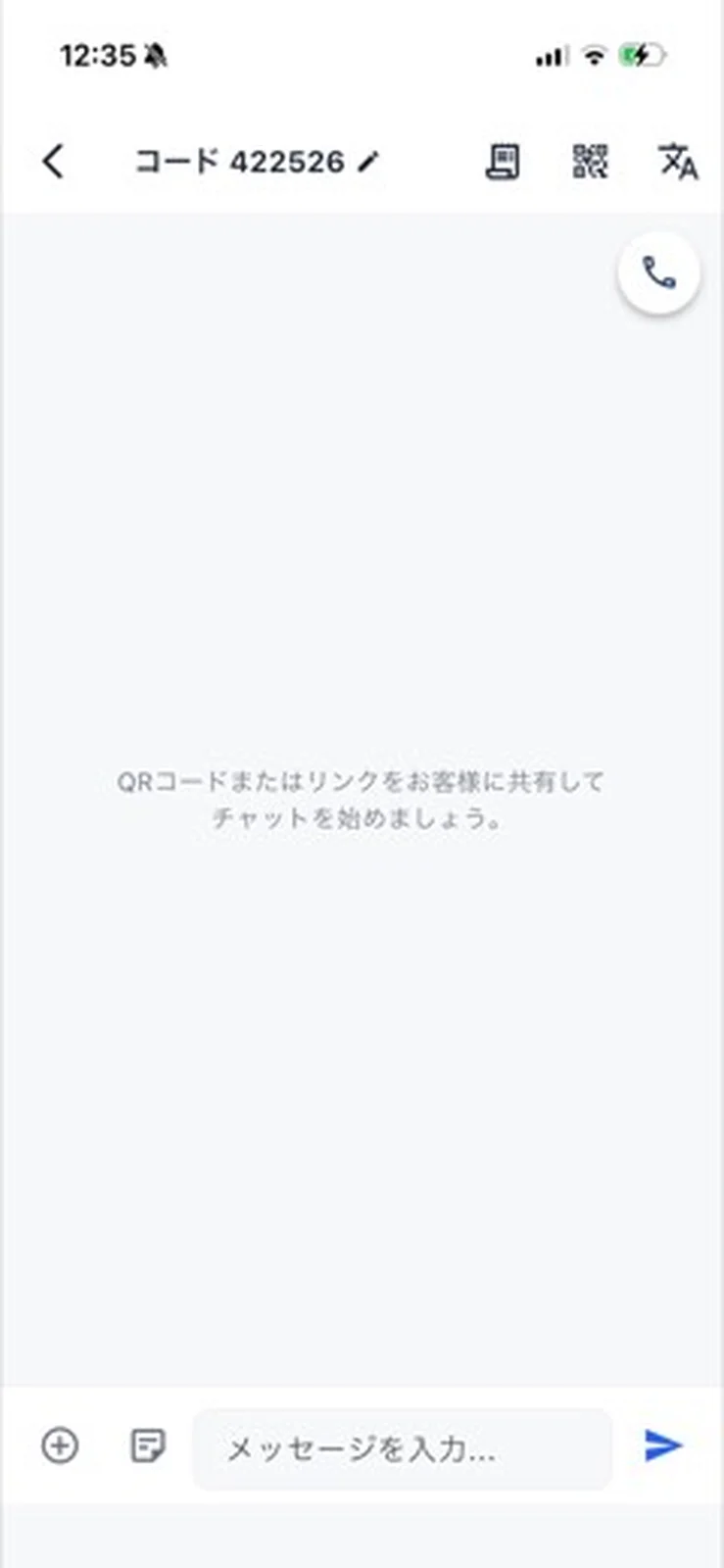
STEP 1: Tap the handset button in the chat
Open the chat in chat and tap the handset button floating at the top right. The customer's language is taken from the chat, so the customer is never asked to choose one.
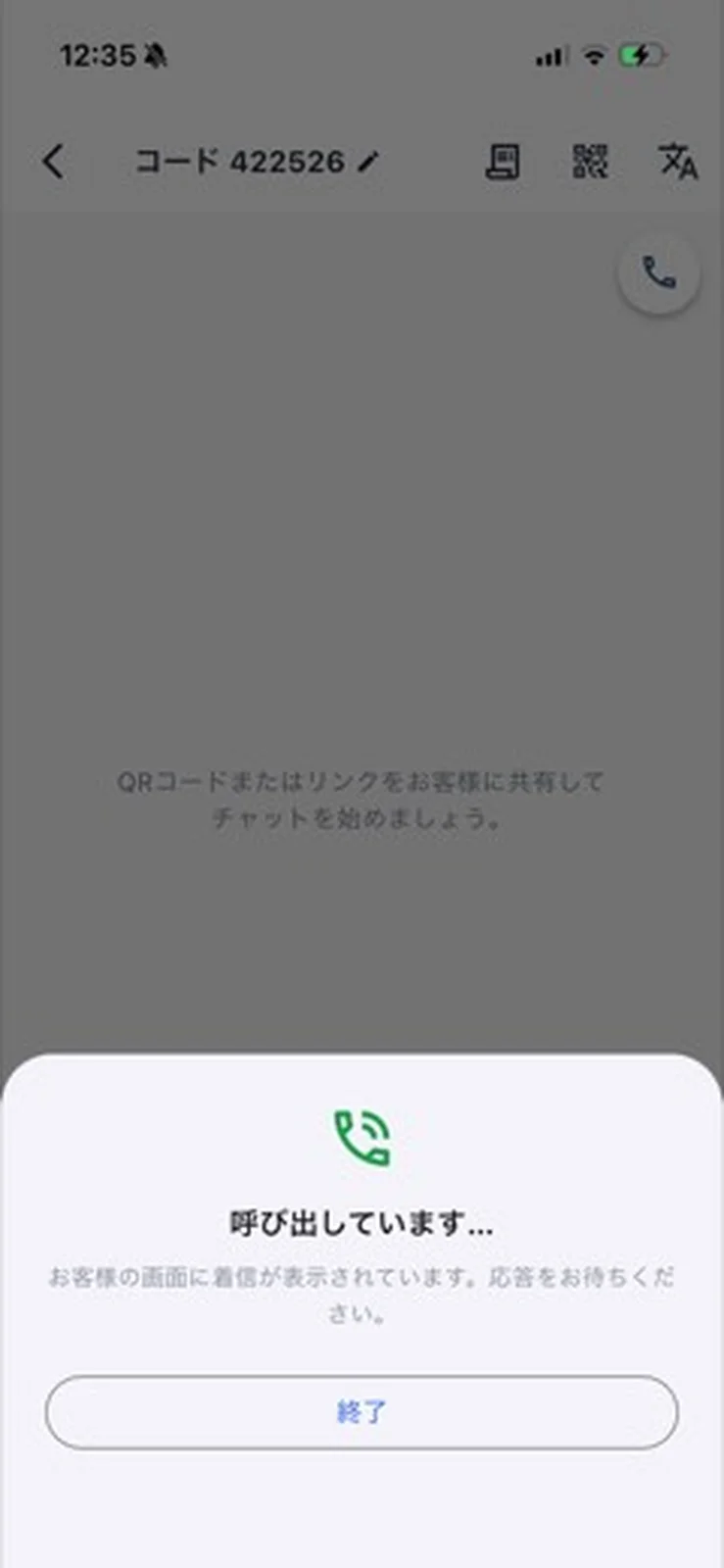
STEP 2: Ringing — wait for the customer to answer
The screen shows "呼び出しています…" (Ringing) while the incoming call appears on the customer's screen. If nobody answers within 60 seconds the ring ends by itself. You can call again as many times as you like.
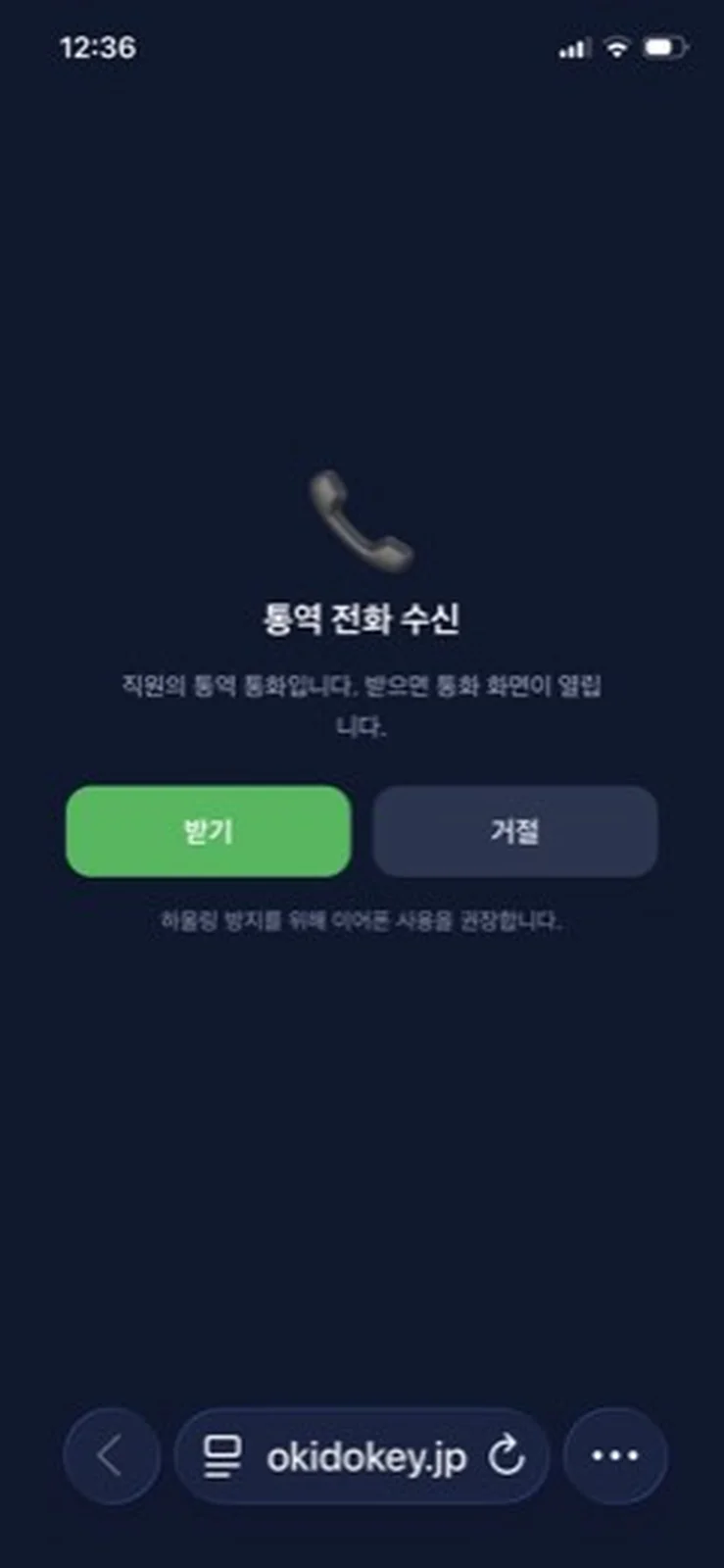
STEP 3: The customer answers
The incoming call is shown in the customer's own language. After tapping "Answer", they choose how to join — earphones or speaker — and the call starts.
STEP 4: Talk
Tap the microphone button, speak, and tap again when you have finished. What you said and the translation stack up as subtitles, and "伝わった" (delivered) appears once it reaches the other side. The call timer runs at the bottom of the screen.
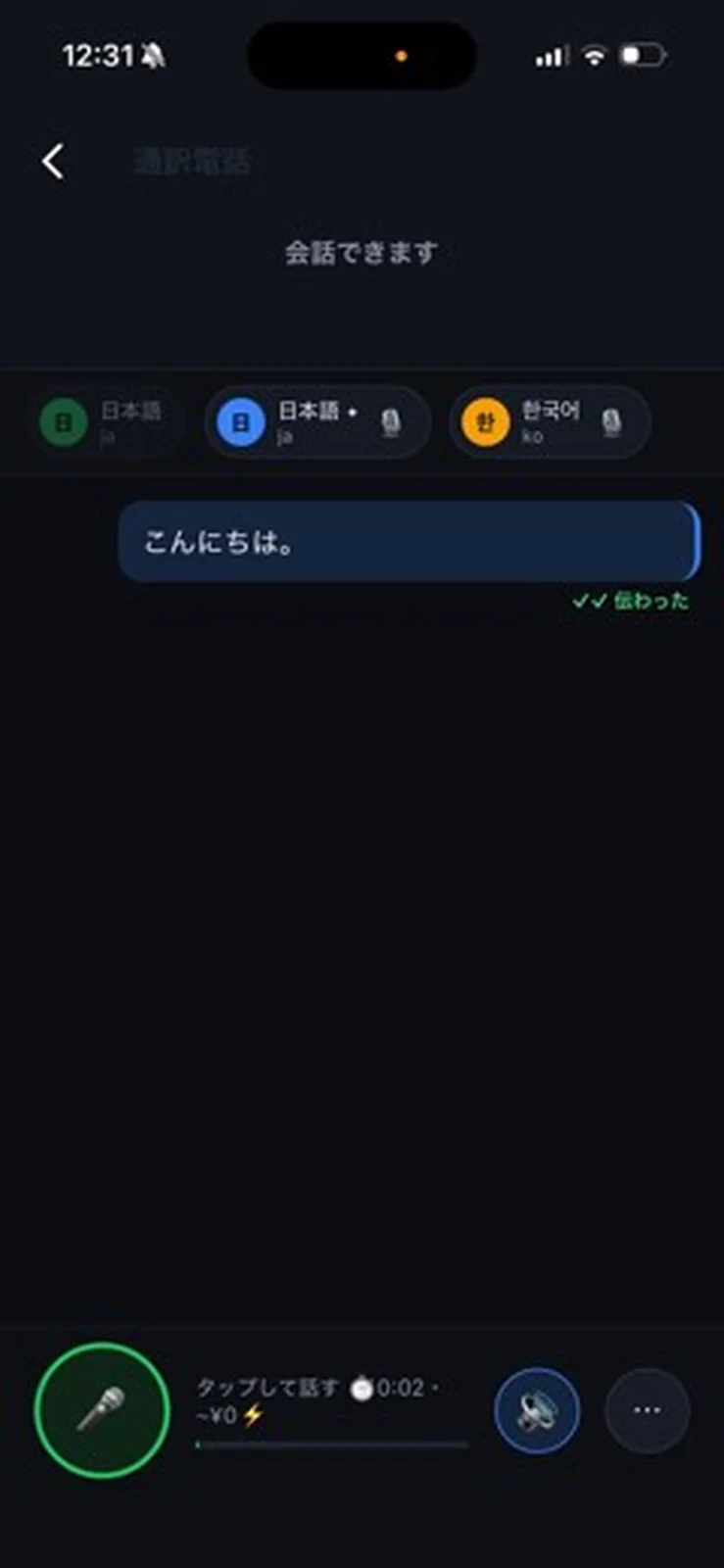
Tap End (the red ×) when you are done. The customer's call ends at the same time and they return to the chat screen.
Placing an interpreted call (by passing a number or QR code)
For customers with no chat, or when you can read a number out over the phone, connect using the six-digit call number, link, or QR code.
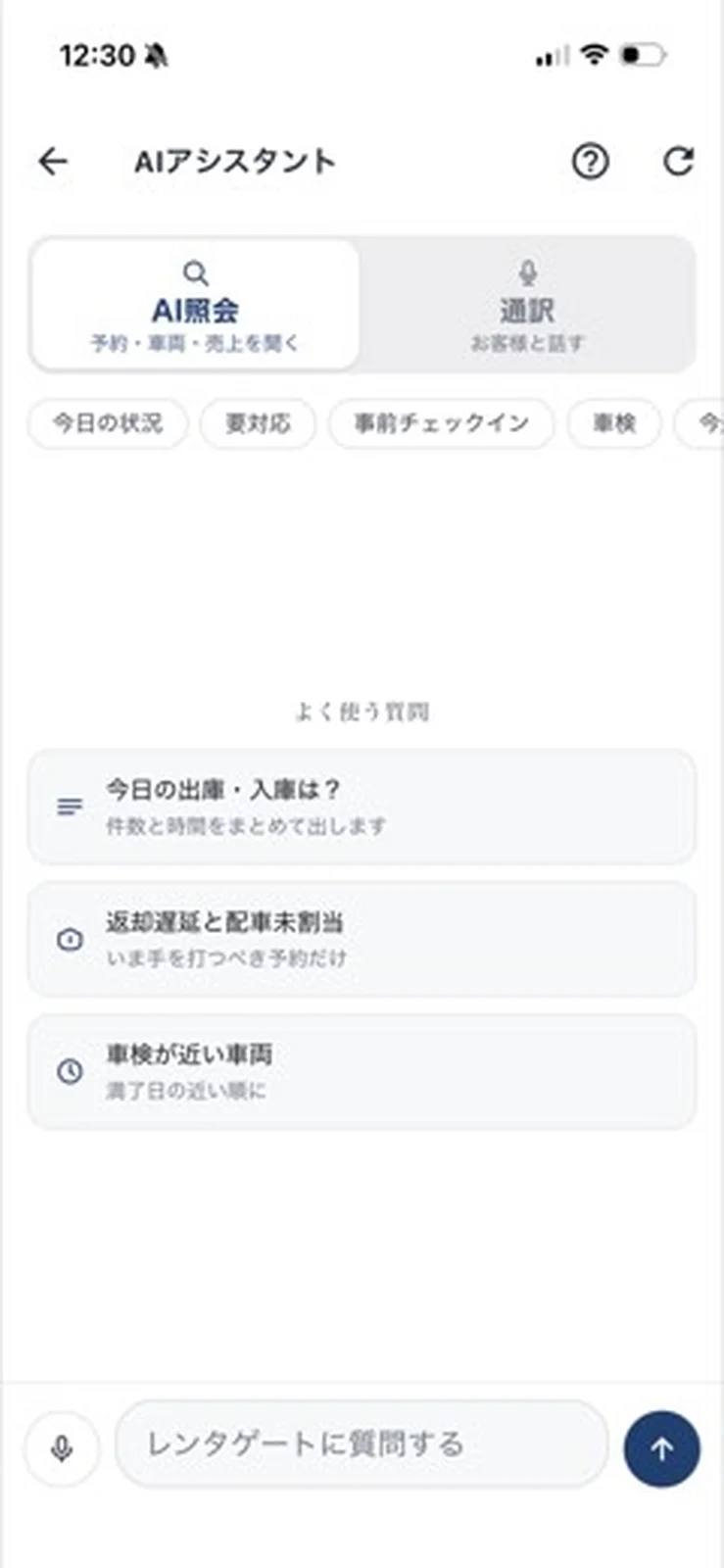
STEP 1: Open the AI assistant and switch to "通訳"
Open AIアシスタント (AI assistant) from the drawer and switch the top tab from AI照会 to 通訳 (talk with the customer).
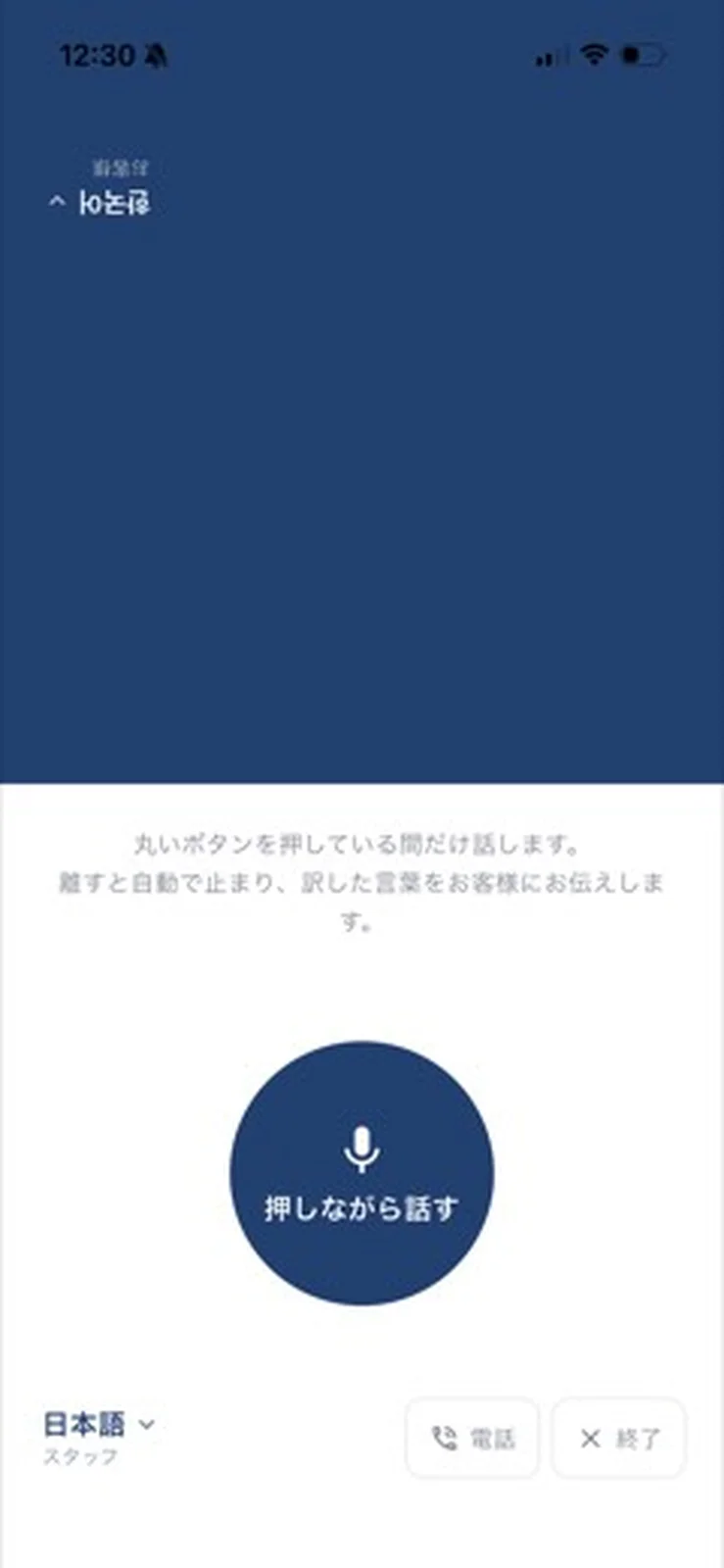
STEP 2: Tap "電話" on the interpreting screen
The face-to-face interpreting screen opens. Check your own language at the bottom left, then tap "電話" at the bottom right to switch to the interpreted call.
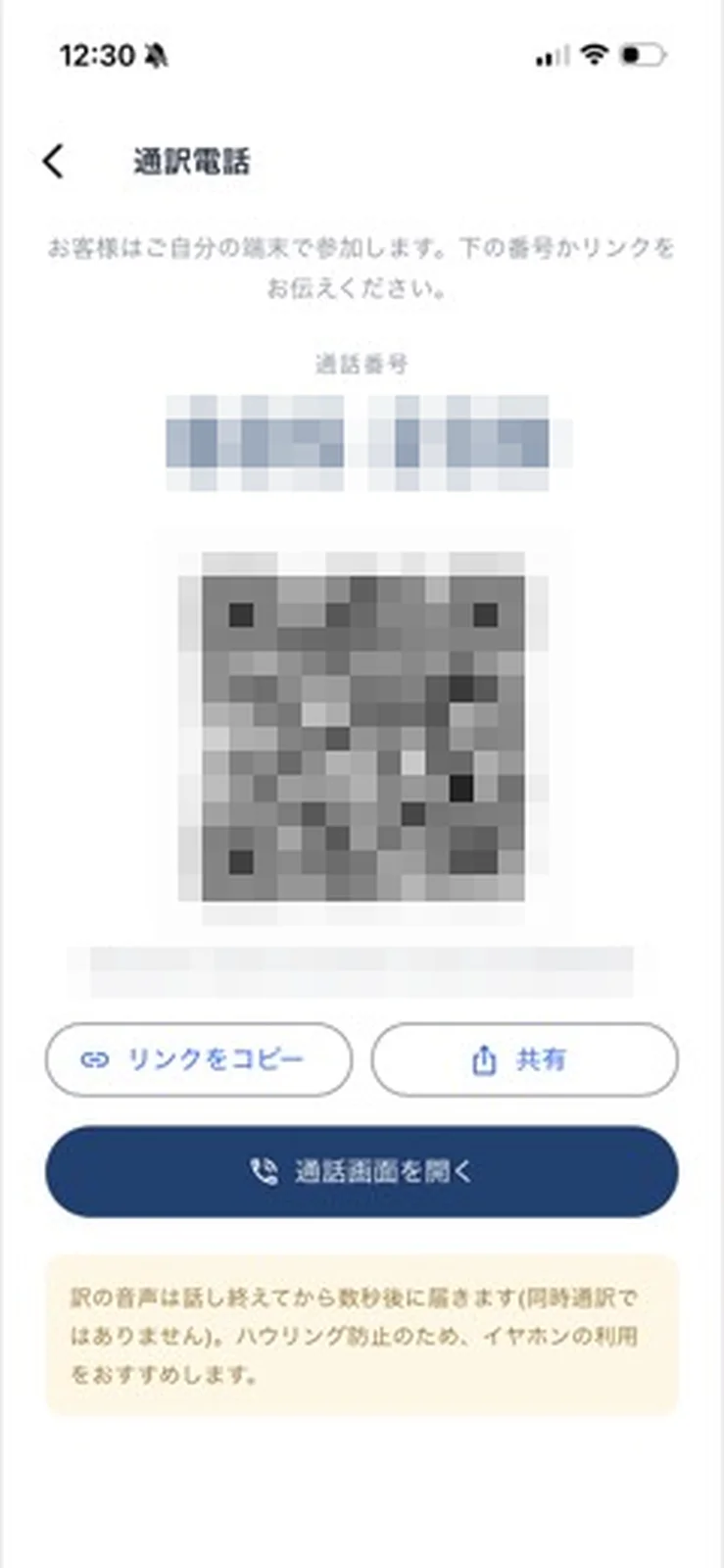
STEP 3: Give the number, link, or QR code to the customer
The call number, a QR code, and a link are shown. Use "リンクをコピー" (copy link) or "共有" (share) to paste it into an email or message (see messaging), or let the customer scan the QR code. Then tap "通話画面を開く" (open the call screen) and wait for them to join.
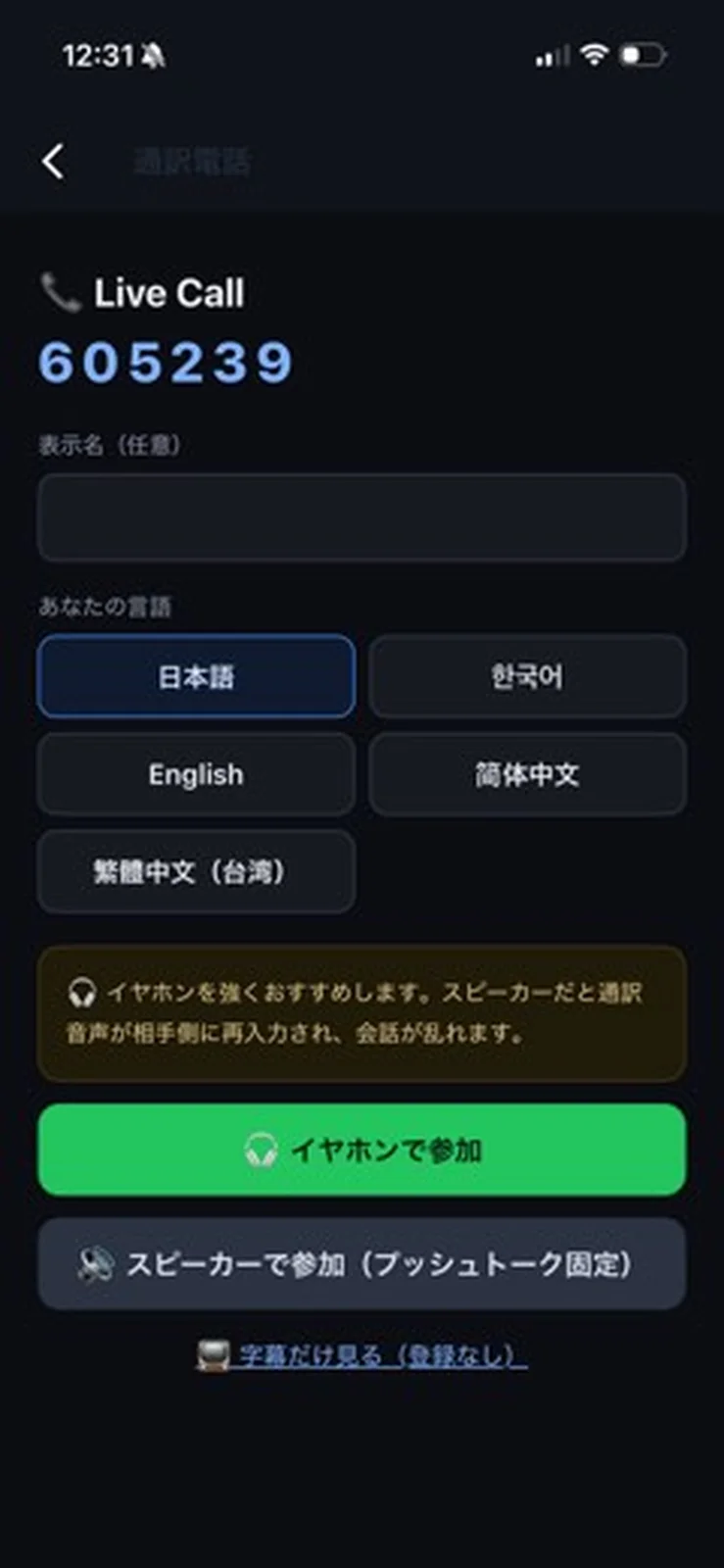
STEP 4: The customer enters a name and picks a language
Customers who open the link are asked for a display name (optional) and a language. Whatever they pick here is the language they will hear. They then choose join with earphones or join on speaker.
Using face-to-face interpreting
When the customer is right in front of you, no call is needed. The top half of the screen is rotated 180° to face the customer. Hold the round button while you speak; release it and the translation is delivered to the customer.
Tap the language name (bottom left "日本語 スタッフ", top right "お客様") to swap languages on the spot — there is no need to go back to settings.
Call records
A call placed from Translation Chat leaves a single line in the chat when it ends. Tap "通話記録を見る" (view call record) to read back what was said and how it was translated.

Typical situations
| Situation | What to do |
|---|---|
| Accident or injury | There is no time to type. Ring the customer from the handset button in the chat. Ask in this order: 1) is anyone hurt, 2) where are you, 3) have you called the police, 4) can the car move, 5) what happens next |
| Breakdown | Get the location, what the dashboard shows, and whether the car is parked safely, then explain the roadside assistance you are arranging |
| Lost on the way | Send the map link in the chat and give the directions by voice |
| Late return or extension | Confirm by voice, then always send the amount as text in the chat as well |
| Handover and return | The customer is right there, so face-to-face interpreting is enough |
FAQ
Q. Does the customer need to install an app?
A. No. They open the link in a browser and allow microphone access.
Q. Can customers call us?
A. No. Only staff can place calls; there is no dial button on the customer's screen.
Q. What about Thai or Vietnamese customers?
A. The call screen covers five languages (Japanese, Korean, English, Simplified Chinese, Traditional Chinese). Ask the customer to pick a language they understand on the join screen, or use text in chat instead — Translation Chat does support Thai and Vietnamese.
Q. The conversation keeps getting tangled and I hear a double voice
A. One side has joined on speaker, so the microphone is picking the interpreted audio back up. Switch to earphones, or speak strictly in turns.
Q. Subtitles appear but there is no sound
A. Check that the device is not muted and the volume is up. In a hurry, the conversation can continue on subtitles alone.
Q. The call dropped
A. Call again from the same chat. Everything recorded up to that point is kept.
Q. It says "Already on a call"
A. Another staff member is ringing or talking on that same chat. Wait for them to finish, or wait out the 60-second ring, then call again.
Related
- chat — Translation Chat, the entry point for interpreted calls
- messaging — Send the call link by SMS or email
- booking-detail — Check the booking details