Review details, assign handlers, and send pre-check-in from Booking Detail
How to use the Booking Detail screen: review the basics, assign pickup/return handlers and a dispatch vehicle, send pre-check-in (SMS / QR / link) and mark pickup complete, review customer/vehicle/amount/flight info, save staff memos, and edit the booking.
Video #091:05
What you can do in booking details
The audio and subtitles of these videos are in Japanese. An English translation of the narration is available below.
Narration transcript (English translation)
Tap a booking in the list on the Bookings tab to open the booking details screen.
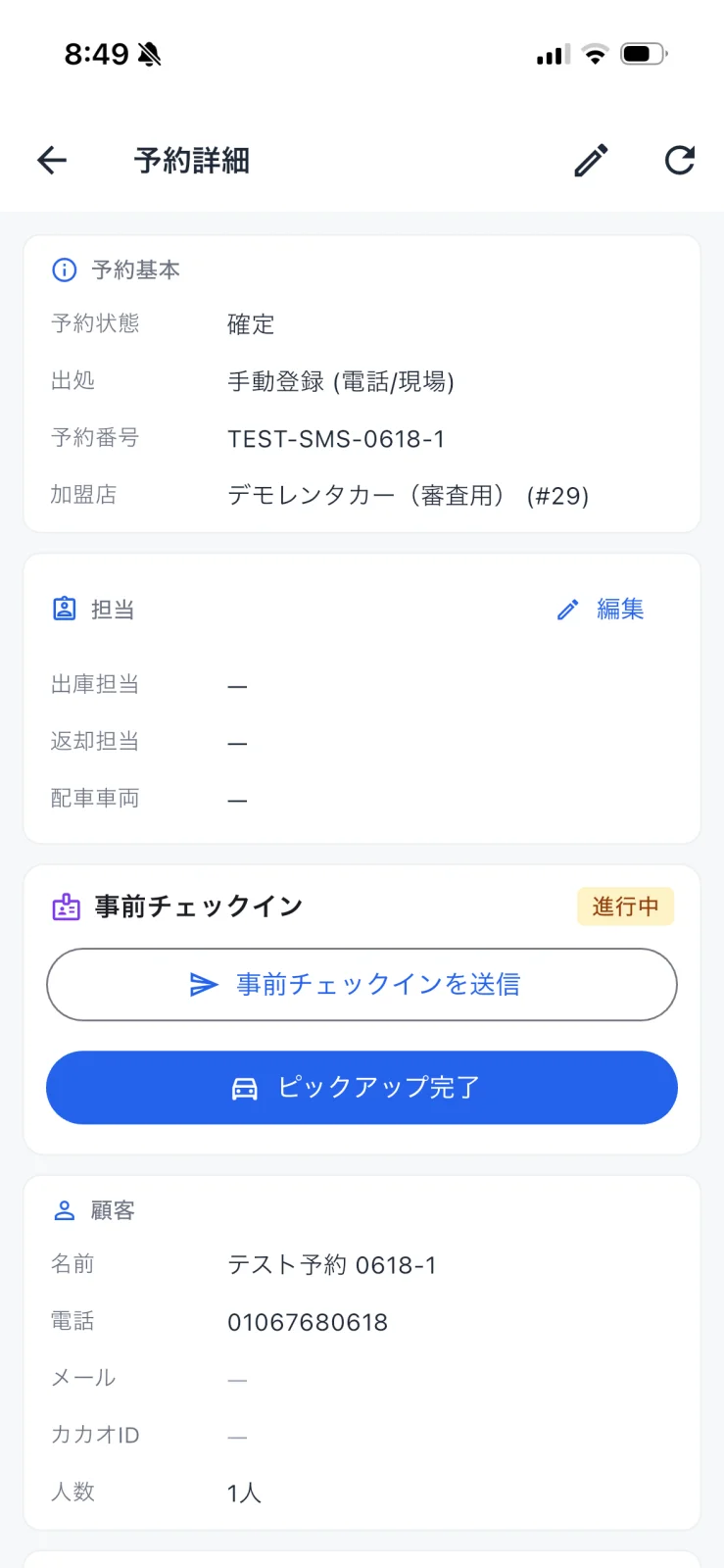
At the top are the booking status and booking number, with the assigned staff below.
Tap “Edit” next to the staff to choose the pick-up staff, return staff, and assigned car. Then tap “Save”.
Pre-check-in for the customer is sent from this card. How to send it is explained in another video.
When you hand the car to the customer, tap “Mark picked up”. The button changes to “Return done”; tap it when the car is returned.
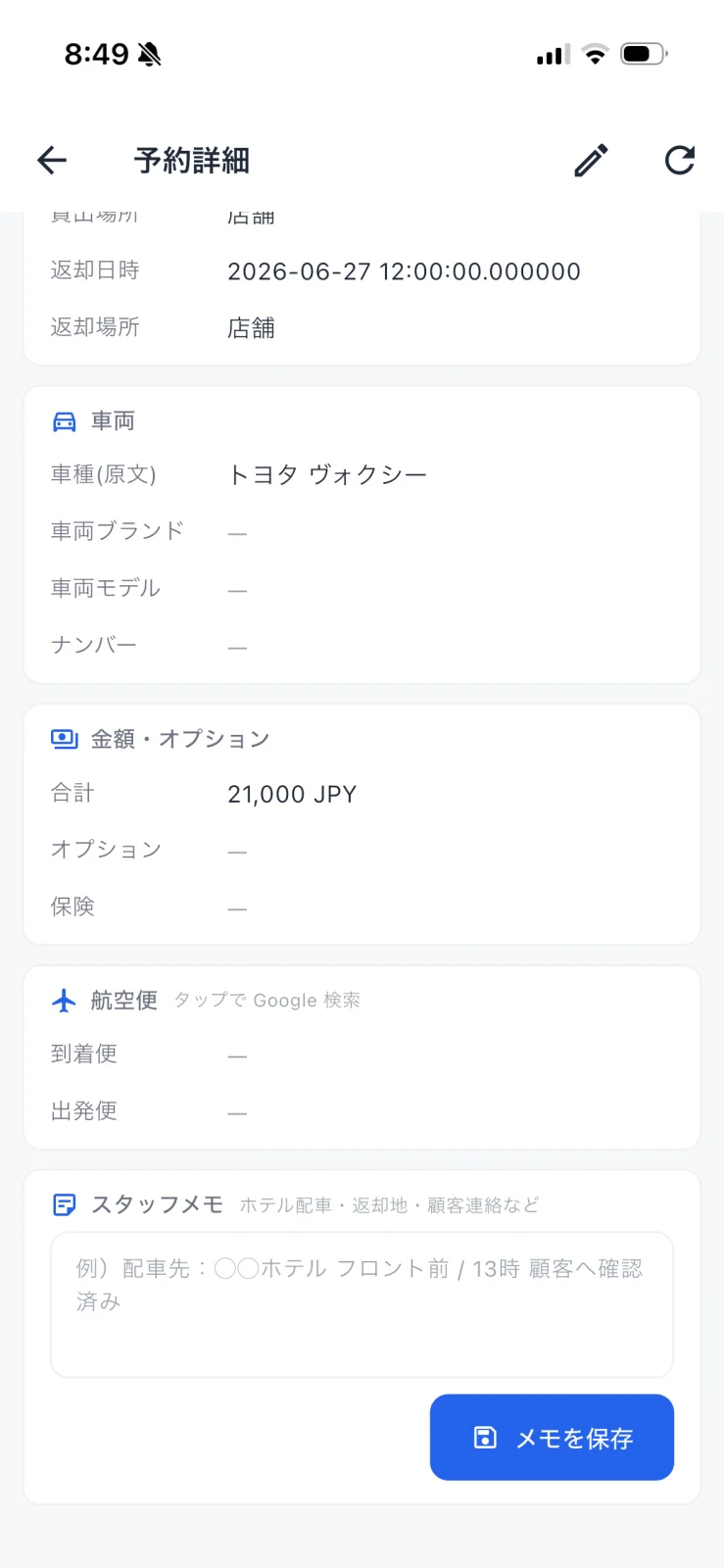
Further down are the customer's contact details, the schedule and places, the vehicle, and the amount.
In the staff memo, note things like the hotel for delivery or the status of contact with the customer, then tap “Save memo”.
To change the dates or other details, edit from the pencil icon at the top right and tap “Save”. That's how to use booking details.
Voice: ElevenLabs (AI-generated voice)
Contents
- Overview
- Review the basics
- STEP 1: Open Booking Detail
- Assign handlers
- STEP 2: Assign from the "Handlers" edit
- Send pre-check-in
- STEP 3: Choose how to send (SMS / QR / link)
- Review vehicle, amount, flight, and memo
- STEP 4: Review the lower sections and leave a memo
- FAQ
- Q. I want to fix the booking details
- Q. What does "Pickup complete" do?
- Q. Can the customer see the staff memo?
- Q. How do I use Flight?
- Related
Overview
Booking Detail is where you review and act on everything about a single booking. It opens when you tap a booking in the Operations tab or the Bookings tab (calendar or list view). Assign handlers, send pre-check-in, and record memos here.
| Section | Content |
|---|---|
| Booking basics | Status, source, booking number, partner store |
| Handlers | Pickup handler, return handler, dispatch vehicle (assign via "Edit") |
| Pre-check-in | Send check-in, mark pickup complete |
| Customer | Name, phone, email, Kakao ID, party size |
| Vehicle / Amount & options / Flight | Model, total, insurance, flight info |
| Staff memo | Internal free-text note |
Review the basics
STEP 1: Open Booking Detail
Tap a booking card to open Booking Detail. The Booking basics at the top show the status (e.g. Confirmed), source (e.g. Manual (phone/on-site)), booking number, and partner store. Use the pencil icon at the top right to edit the booking, and the refresh icon to reload.
Assign handlers
STEP 2: Assign from the "Handlers" edit
Use "Edit" at the right of the Handlers section to assign the pickup handler, return handler, and dispatch vehicle. The same can be done from the Operations card (see operation).
Send pre-check-in
Pre-check-in lets the customer enter driver info and agreement forms before arriving. Send it from the Pre-check-in section.
STEP 3: Choose how to send (SMS / QR / link)
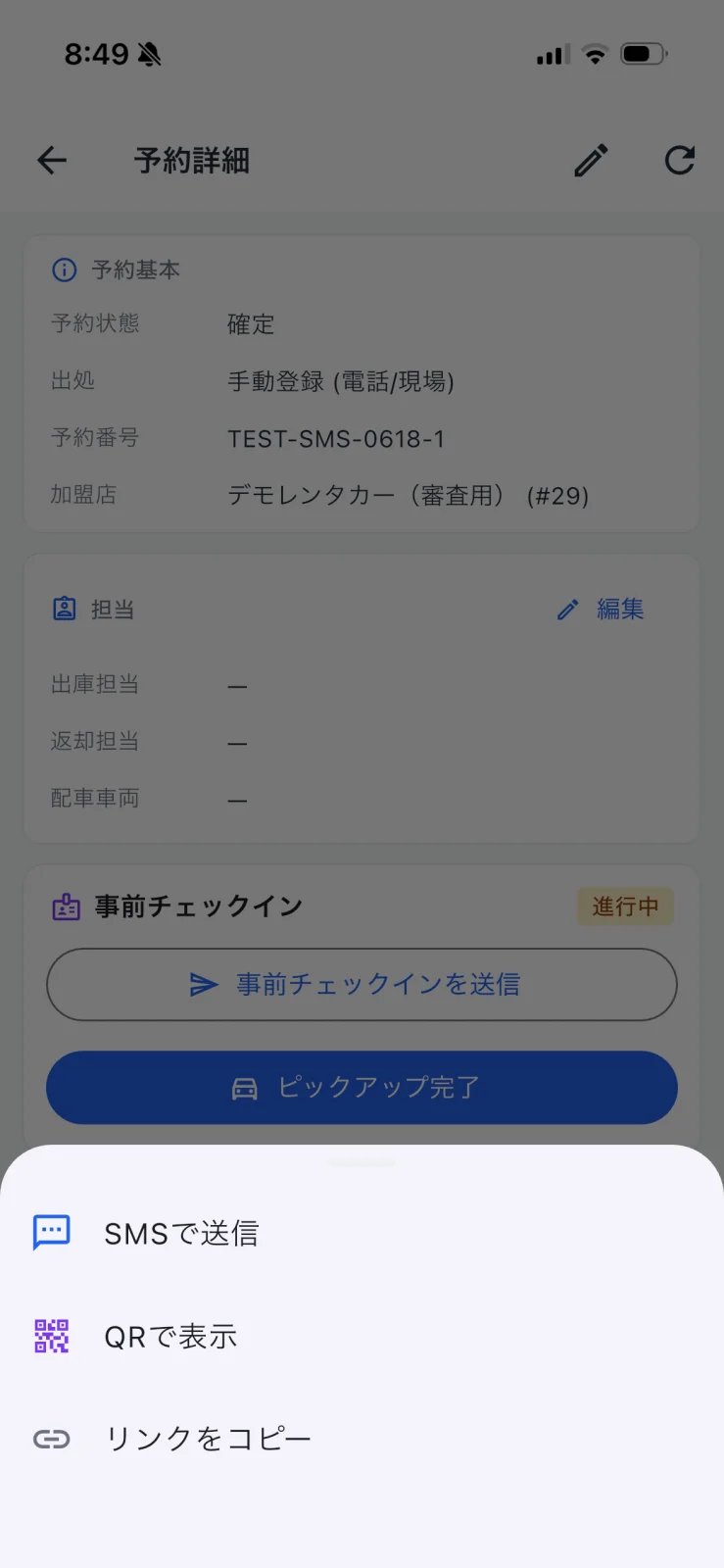
Tap "Send pre-check-in" to open the send-method sheet.
| Method | Use |
|---|---|
| Send by SMS | Text the link to the customer's phone |
| Show QR | Show a QR in store for them to scan on the spot |
| Copy link | Share via LINE, email, or any channel |
When the customer finishes, the status updates. After they arrive and you hand over the car, tap "Pickup complete" to mark it handled.
Review vehicle, amount, flight, and memo
STEP 4: Review the lower sections and leave a memo
Scroll down for Vehicle (model, brand, model code, plate), Amount & options (total, options, insurance), and Flight (arrival/departure — tap to Google-search). At the very bottom, record an internal note in Staff memo (dispatch location, return location, customer contact, etc.) and save it with "Save memo."
FAQ
Q. I want to fix the booking details
A. Open the edit screen from the pencil icon at the top right. Both manual and OTA-imported bookings can be edited.
Q. What does "Pickup complete" do?
A. It sets the booking to rented (in-progress). You can track stock status under "Active" in the Operations tab.
Q. Can the customer see the staff memo?
A. No. The staff memo is internal and is not shown to the customer.
Q. How do I use Flight?
A. If you know the arrival/departure flight number, tapping it opens a Google search — useful for checking delays.
Related
- operation — Same-day pickups/returns and handler assignment
- booking-manual — Register phone and walk-in bookings manually
- precheckin-settings — Configure pre-check-in items and forms (admin)