Register vehicles and track inspection and insurance expiry
How to use the Vehicle information screen: register, edit, and delete vehicles; search by plate or model; manage inspection and insurance expiry with expired/days-remaining warnings; and check availability. Registered vehicles become candidates for dispatch assignment.
Video #041:11
From vehicle info to dispatch
The audio and subtitles of these videos are in Japanese. An English translation of the narration is available below.
Narration transcript (English translation)
Open the menu at the top left and tap “Vehicles” under “Vehicles & Inventory” to see a list of your registered cars.
Each car shows its model, plate number, and number of units owned. “Available” or “Stopped” on the right tells you whether it can be rented out.
Expiry dates for “Inspection” and “Insurance” are also shown: yellow within one month, red within one week or once expired.
Tap a row to open “Edit vehicle”, where you can check the plate number, “Insurance expiry”, and “Inspection expiry”. This time we'll close it without saving.
Deadlines including compulsory insurance and periodic inspections can be checked together in “整備 予定・超過” (Maintenance: scheduled/overdue), opened from the maintenance button on the “Operations” tab.
Next, open “Dispatch” from the menu. On the “Board”, each registered car is a row, and bookings appear as horizontal bars.
Each row is labeled with the last four digits of the plate number and the model. “Unassigned” at the top is the number of bookings without a car yet. Assigning cars is covered in another video.
Voice: ElevenLabs (AI-generated voice)
Contents
Overview
Vehicle information is where you register and manage your fleet. Registered vehicles become candidates for dispatch assignment on bookings (operation, booking-detail). You can also manage inspection (shaken) and insurance expiry, with warnings for vehicles nearing their deadline.
Review vehicles
STEP 1: View the vehicle list
Open Vehicle information to see registered vehicles as cards. Each card shows the brand and model, plate, the inspection and insurance expiry dates, and availability. Use the search box at the top to narrow by plate or model.
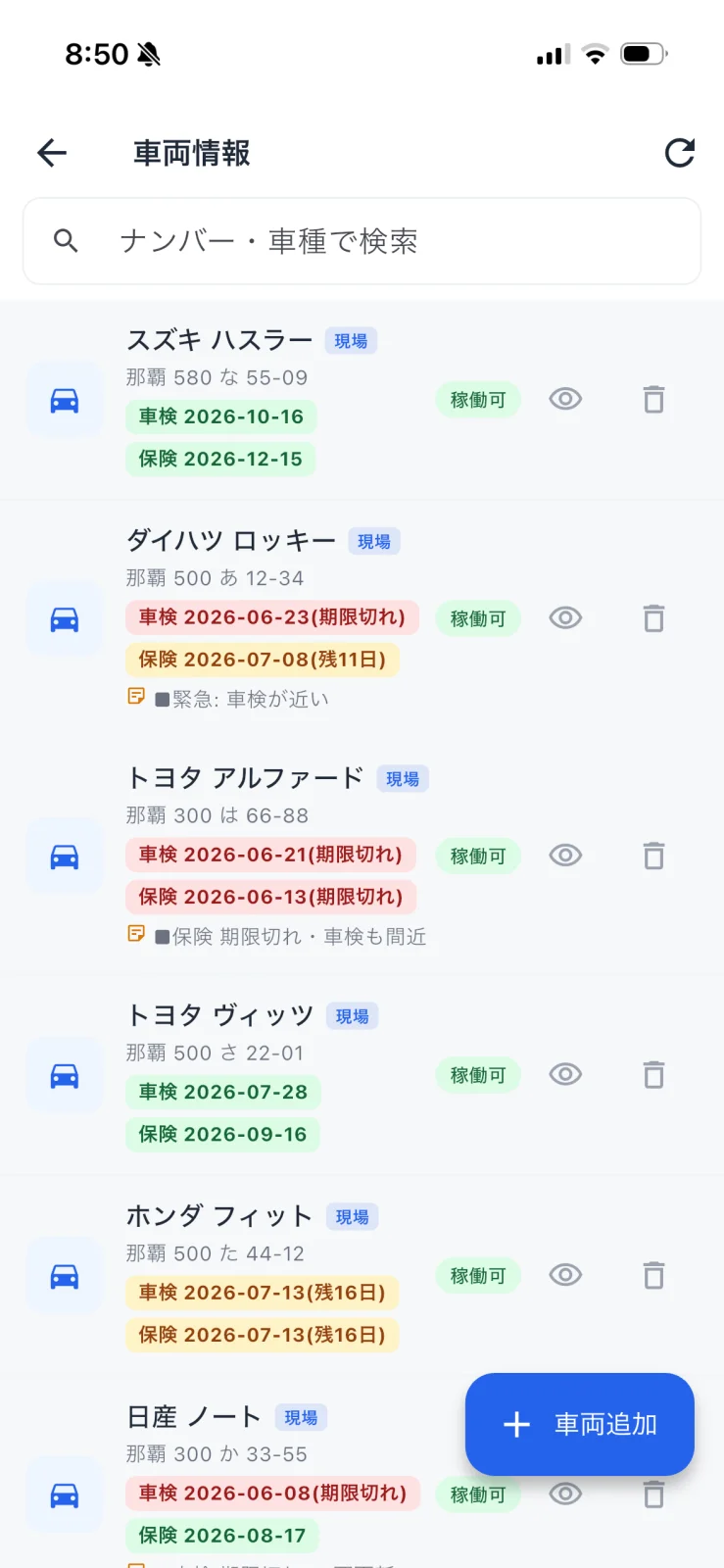
- Vehicles whose inspection/insurance is near or past expiry show a "N days left" / "Expired" warning badge.
- The Available label shows whether a vehicle is in a state ready for dispatch.
- Use the eye icon on each card for details and the trash icon to delete.
Add and edit vehicles
STEP 2: Register from + Add vehicle
From "+ Add vehicle" at the bottom right, enter the brand, model, plate, inspection expiry, insurance expiry, and so on, then register. Edit existing vehicles from their cards.
FAQ
Q. What should I do with a vehicle marked "Expired"?
A. Renew the inspection/insurance and update it with the new expiry date. Don't dispatch expired vehicles.
Q. How do I assign a vehicle to a dispatch?
A. Choose the dispatch vehicle from the operation card or the "Handlers" section in booking-detail. Candidates come from vehicles registered here.
Q. I want to delete a vehicle I no longer use
A. Use the trash icon on the card to delete it.
Related
- operation — Assign a dispatch vehicle to a booking
- booking-detail — Review and change a booking's dispatch
- settings — Reach other management items from Settings