Manage staff accounts in User management
How to use the User management screen (for partner-store admins): list and search staff accounts, add new ones, set roles (partner staff / admin), reissue passwords, and activate/deactivate accounts. This is the setup for using the app as a team.
Contents
Overview
User management is where you manage the staff accounts for using the app as a team (for partner-store admins). You can add accounts, set roles, reissue passwords, and activate/deactivate.
| Control | What it does |
|---|---|
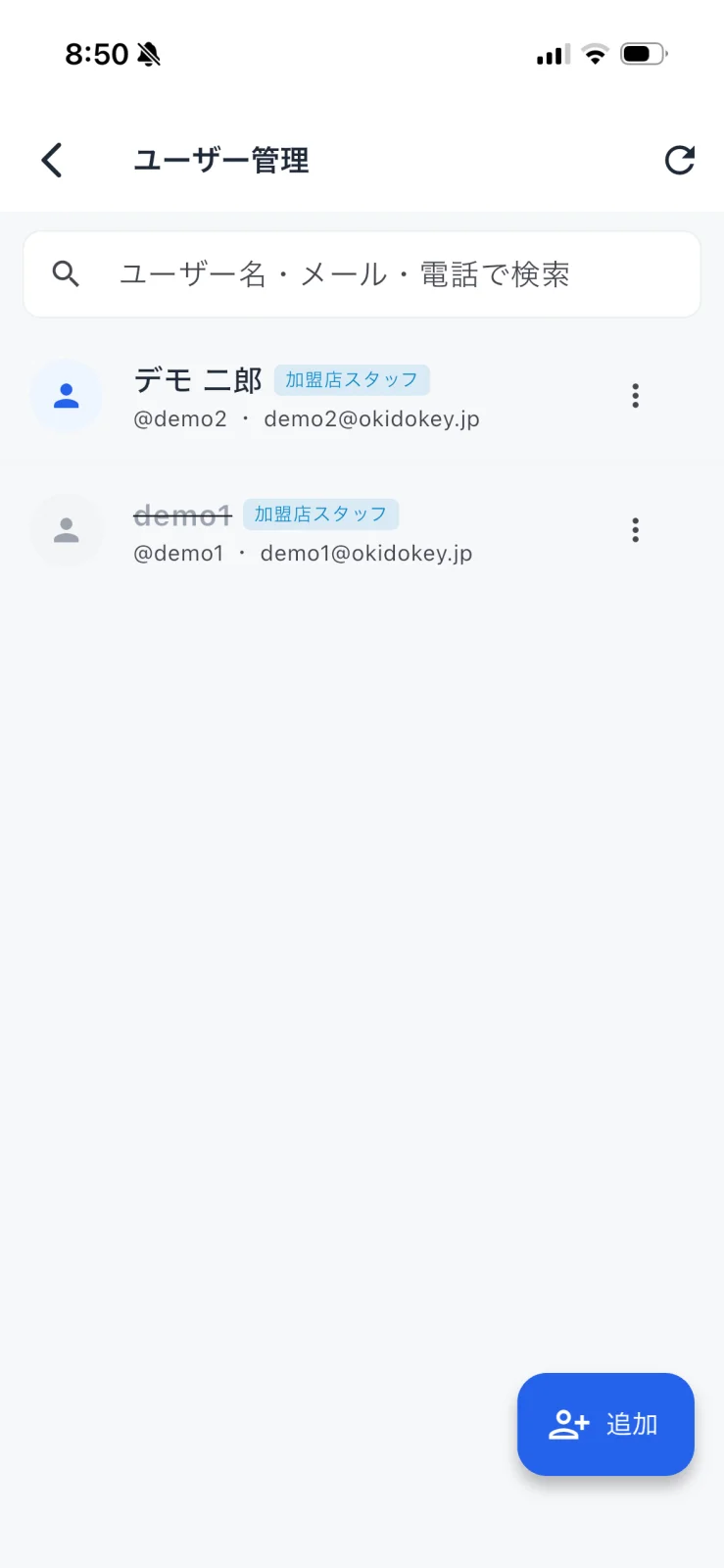
| Search | Search by username, email, or phone |
| Add | Create a new account |
| ⋮ menu | Edit, reissue password, toggle active/inactive |
Review users
STEP 1: View the user list
Open "User management" from the drawer (left menu) to see registered users. Each row shows the name, a role badge (e.g. Partner staff), the username (@…), and email. Use the search box at the top to narrow the list.
Add and edit users
STEP 2: Create from + Add
From "+ Add" at the bottom right, enter the name, username, email, role, and initial password to create an account. Choose the role from Partner staff, Admin, and so on.
STEP 3: Edit, reissue password, deactivate
From each user row's ⋮ menu, you can edit info, reissue the password, and toggle the account active/inactive. Deactivate the account of a staff member who has left, and they can no longer sign in (history is kept).
FAQ
Q. Can usernames be duplicated?
A. No. Usernames are unique (no duplicates) — a duplicate name cannot be registered.
Q. A staff member forgot their password
A. Reissue a new initial password from Reissue password in the ⋮ menu.
Q. What about staff who have left?
A. We recommend deactivating the account rather than deleting it. Deactivation prevents sign-in while preserving their past assignment history.
Q. Can anyone use this screen?
A. User management is a feature for partner-store admins (and super admins).